Tuesday, January 15, 2008

AutoStack Fractions

Well this seems to come up from time to time so it's worth mentioning. Have you ever changed you AutoStack to something you didn't mean to then check the box that says "Don't show me this dialog again".
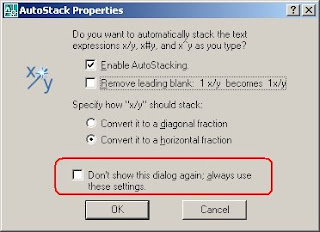
Now you can't get it back to change your mind. Well here is what you do. Create another fraction and let AutoStack jack it up. Select that fraction, right click and pick Stack Properties. This will bring up this friendly dialog.
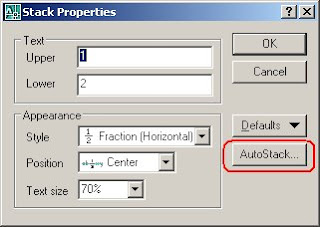
Click on the AutoStack... button to bring back the original AutoStack dialog and set thing straight again.
Isn't that better. I thought so.

Wednesday, January 09, 2008

Viewport Twisting

I learned how to twist a viewport not because I wanted to, but because I received a drawing with a twisted viewport and could not figure out what the deal was. In model space everything was rotated about 30 degrees and in paper space it all sat straight.

So here is how to do it. In Paper space type "Dview". When prompted for an option type "tw" for twist. Then try "90" for the twist angle. Hit "enter" twice to exit the command. The results are shown below.


This might help where you have a true North but prefer to work at drawing North, who know, but I sure enjoy twisting just for fun.

Tuesday, January 08, 2008

Rock the Vote

I closed my poll on what software people who read this poll are using. While the vast majority is on 2008 or 2007, I found it interesting that 14% used 2004 or older as compared to 8% using 2005. See the results below.


I suppose it's time to ask the next burning question. Check the side bar, and rock the Vote!

Revit for AutoCAD Users

Here is a nifty trick for those who mainly use AutoCAD based products but have access to a Revit license. I often get files to start projects that have a gazillion frozen or off layers. When I want to delete all these layers, I would normally use the Layer Properties Manager to lock the visible layers and then make the not visible... well visible. The I could delete the originally not visible and unlock the rest with a purge to top it off.

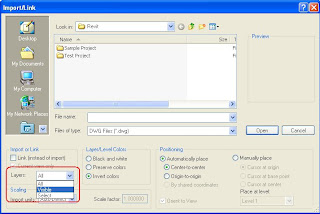
I don't know if this is easier, but it's and option. Open Revit and select the Import\CAD Formats from the File menu. In the Import\Link dialog chose only to import the visible layers as indicated below.
Finish by exporting that view back to AutoCAD. You can also hand pick layers using the select option, but I find you might as well open the Layer Properties Manager at this point, because Revit takes just as long to show you all the layers as AutoCAD does.

Now get back to work, somebody out there is waiting on their red lines.