Showing posts with label System Variables. Show all posts

Wednesday, September 02, 2015

Who Has My Drawing Open?

It hasn't to me for years but it did yesterday. I tried to open a drawing but it was locked by another user, and I had no idea who it was.

I fell back on an AutoCAD command I haven't used for years and it still works great.

Type "whohas" on the command line, and browse to the file in question.


Click the Open button in the Select Drawing to Query dialog and Wa-Shaw!

It was Spellerberg all along! SPELLERBERG!!!!!!!

Wednesday, July 24, 2013

What are you Hiding?

Every users hits a point when AutoCAD displays a dialog box alerting you to something and you see the check box that says something to the effect of "Don't ask me again" and that box gets checked.

Many people have enjoyed the not being bugged afterward, but occasionally there is regret.

Here is how to erase that regret.

Go to the Systems tab of the Options dialog, and click the "Hidden Messages Settings" button.

This will open the expected dialog revealing everything you have chosen to hide. More importantly, you can choose to see the regretted dialog boxes of your choice, by checking the boxes next to them.


Wednesday, June 26, 2013

Who do you trust?

After installing AutoCAD 2014, you may have an issue with some routines that worked fine in the past. In my case it came down a lisp that gets called from outside of my normal environment. You may already know that the addition of Trusted Locations, is an effort to increase the security of AutoCAD. It limits the use of lisps, executables, and the such to only the ones found in trusted locations specified in Options on the Files Tab. The "Trustedpaths" system variable can be used to command line the trusted locations.

Now that we have the ability, I had to track down the location of these files so I can add them to the list of Trusted Locations. After a bit, I got tired of looking because.... I'm Lazy duh. So instead I hopped over to the System tab. there you will find an "Executable File Settings" button. Click that, and choose the top selection, which just like it says, will load from all locations without displaying a warning. You can accomplish the same thing with the "Secureload" system variable, setting it to 0,1, or 2. those number equate top to bottom of the choices in the dialog.
There is also a "trusteddomains" system variable out there to add trusted sited to download from.

Monday, February 25, 2013

Properties, Properties, Properties

If you are old enough to remember when AutoCAD didn't have a Properties, window, pallet, dialog, or anything... when a properties anything pops up on your screen you more than likely go full on grumpy geezer.

Well, here are the most common ways a properties something injects itself into your workflow grandpa. 

First if you see this....


Try setting your Rollovertips = 0

If you see this....


That is Quick Properties. Click the button circled in red in the image to turn it off.

If you see this one...


Selection Cycling is turned on. Turn it off by clicking the circled icon in the image above.

Friday, January 25, 2013

tSpaceInvaders

Every once in a while I come across a crazy command or in this a case a command with a crazy name. So back in the 1980 there was a great video game called Space Invaders. Oddly enough there is an AutoCAD command (Express Tools) called tspaceinvaders.

The command will ask you to select objects then show you every where a text object has an object on top of it invading its space. it will allow you to step through each instance and fix them along the way. It a classic game and a classic problem.

Who knew there was also a command to handle it.

Friday, November 30, 2012

Revit Window Tile for AutoCAD

When you have been drafting a while, your hands just start to take care of business out of habit without  any real thought. Its a reflex. The hard part of drafting by reflex is when you have to switch from one software to the other on a daily basis. In my case it's AutoCAD for a bit, then Revit, some more AutoCAD, more Revit. I find myself doing things in AutoCAD that only work in Revit.

I use WT in Revit to tile the Revit windows. I find I want to do that in AutoCAD now. So I wrote a little lisp to make it do the same thing.

Making things the same in both programs, let's me draft by reflex, which is super productive/


Monday, August 27, 2012

Keep Your Profile in the Cloud

I'm not going to say this any better than Brian Benton did on the CADalyst site, so go over there and check out this slick way to store your customization in the cloud.

Thursday, March 03, 2011

Status Bar El-Gone-O

The Status Bar occupies the bottom 1/4" of your AutoCAD screen. I has tools to control object snaps, grids, object tracking, workspaces, and a ton of other things. If it ever disappears it can be brought back by typing "statusbar" on the command line and changing it back to "1".

Sunday, December 05, 2010

No Hatch Dialog

In my last post I was talking about using system variables for evil. In this post use a system variable for good. Problem; every tome the hatch or boundary hatch command is issued, instead of the hatch dialog, there are only a command line options.

When all else fails, the likely culprit is the system variable HPDLG.

HPGLG controls the display of the Hatch and Gradient and Hatch Edit dialog boxes.

Set it to 0 and Hatch and Gradient dialog boxes are not displayed for HATCH/GRADIENT commands unless Settings is entered at the command prompt.

Set it to 1 and Hatch and Gradient dialog box are displayed for HATCH/GRADIENT commands but not for existing hatch object selection.

Set it to 2 and Hatch and Gradient dialog box are not displayed when the ribbon is active (RIBBONSTATE = 1). When the ribbon is inactive (RIBBONSTATE = 0), the Hatch and Gradient dialog box is displayed.

Tuesday, November 30, 2010

AutoCAD Bad Boys and Girls

When I think back to my first experiences with AutoCAD, I realize that PCs themselves were new and not a lot of people felt comfortable with computers. I did some of my best learning figuring out how to mess with new people. Below are examples of me being a jerk. I'm not proud of my actions (well, maybe a little) but, I learned a lot about digging into software and working things out. If the pay off was a little laugh, well maybe that is just enough motivation for the mischievous AutoCAD users.


Example One: (nuisance)
Change the blipmode to 1. Blipmode leaves a tiny "X" everywhere the user clicks for no good reason. Well I think the reason was in the old days we wanted feedback to where we just clicked.


Example Two: (annoying)
Set zoomfactor to 5. This slows your scroll wheel down to about old-lady.


Example Three: (irritating)
Type in vtoptions and set the Transition speed all the way to slow. This will make a zoom all take about all of a guys lunch break.


Example Four: (offensive)
Change mbuttonpan to 1. this will bring up object snaps instead of letting you pan with the mouse.


Example Five: (painful)
Change pickadd to zero. This makes it so you can only pick one element at a time.


Example Six: (jerk)
Change highlight to zero. This turns off the highlighting of selected objects.


Example Seven: (extreme jerk)
Use aliasedit to change common keyins like E for the line command.

Thursday, April 01, 2010

Favorite AutoCAD 2011 Features - Missing SHX and Font Files

Having the option to ignore missing SHX files (shape or font files) when opening a drawing is about the coolest thing that ever happened. Normally when you get this error there is nothing you can do anyway, so being able to just ignore this warning forever is a blessing. 


FONTALT can be used to control the dialog if you want it back for some reason after you click the "Always perform my current choice" box.

Tuesday, March 23, 2010

Multi-Sheet vs. Single Sheet Publishing

Recently we noticed that using the PDF override published a multi-sheet file instead of a series of single sheet files, even though the publish options were set to Single Sheet files. No matter how we tried to create single sheets files, AutoCAD seemed to just do the opposite.

It turns out there was a system variable working against us, PUBLISHCOLLATE.

PUBLISHCOLLATE is set to one out of the box. Under this setting a published sheet set is processed as a single job. A multi-sheet file is created. If the sheet set is published, it is never interleaved with other plot jobs.

Set PUBLISHCOLLATE to zero and a published sheet set is processed one sheet at a time. Separate files are created for each sheet. If the sheet set is published, the sheets might be interleaved with other plot jobs.

Wednesday, May 27, 2009

Fading Away in 2010

If you used fading for locked layers in previous version of AutoCAD you may run into and issue when you first start using 2010. Your Xrefences may  not be responding to changes to the laylockfadectl system variable. This may be because 2010 has introduced an Xreference display option that will fade Xreferences. 

Here is the break down from the help file.
Xref Display
Specifies the fading intensity value of externally referenced drawings. (XDWGFADECTL system variable)

This option only affects the display on the screen. It does not affect plotting or plot preview. The XDWGFADECTL system variable defines the fade percentage of the DWG xrefs. The valid range is an integer between -90 and 90. The fading value is limited to 90 percent to avoid confusion with layers that are turned off or frozen. 

0  Locked layers are not faded
>0 When the value is positive, controls the percent of fading up to 90 percent
<0 When the value is negative, locked layers are not faded, but the value is saved for switching to that value by changing the sign

When XDWGFADECTL is set to a negative value, the Xref Fading feature is not turned on, but the setting is stored.
In-place Edit and Annotative Representations
Specifies the fading intensity value for objects during in-place reference editing. Objects that are not being edited are displayed at a lesser intensity. (XFADECTL system variable)

With in-place reference editing, you can edit a block reference or external reference from within the current drawing. The valid range is 0 through 90 percent. The default setting is 50 percent.

Laylockfadectl
Controls the amount of fading for objects on locked layers.

Fades the objects on locked layers to contrast them with objects on unlocked layers and reduces the visual complexity of a drawing. Objects on locked layers are still visible for reference and for object snapping.
Hope this helps.

Monday, March 16, 2009

Hatch Pattern Too Dense

When opening a clients drawing I kept getting this error "Hatch Pattern Too Dense". After doing a little research I came across MaxHatch. This controls the number of elements hatch can create. The default value is 10000. To find out where you sit currently type the following on your command line. Be careful this command is case sensitive.

(getenv "MaxHatch") 

To increase that number to its maximum copy and paste this on your command line.

(setenv "MaxHatch" "100000000")

Tuesday, June 05, 2007

Printing Issues with 2008

I am implementing 2008 right now and ran into an interesting problem. When plotting to PDF by layout tab in 2008, everything including the plot preview looks great, but the final PDF was be shifted to Up and to the Right. I found a thread on the discussion Groups recommending that you (first back it up) replace

C:\Program Files\AutoCAD 2008\Drv\pdfplot9.hdi
with
C:\Program Files\AutoCAD 2007\Drv\pdfplot.hdi.

Make sure it is the updated version from Service Pack 2 dated 3/22/07. This seemed to solve the problem for most after a reboot. I still had the same problem and found in my case it was because I made make the printable area on my PDFs the entire sheet. I plot to the edge of the paper, which PDF is not liking in 2008. I created some new sheet sizes bringing the edges of the printable area in, and everything started working again. I'm guessing that how far you will have to bring in your edges may vary, so start with a big number to see if it's working then start working your way back to see what you can get away with.

On a related note, I also came across this system Variable "publishcollate". It toggles your print to DWF from single to multi page DWFs. Handy.

Thursday, January 25, 2007

The System Variable Editor

Systems variables, they can really mess thing up, and they can really give you a lot of power. Thing is, it's difficult to seek out an unknown variable. It seems you are in the know or you're not.


Well, welcome to the club, because I have your key to knowing it all about system variables. All you need is Express tools loaded. If it is not loaded, and you have the privilege to do so, go to Add/Remove programs. Select AutoCAD 200X and select change.


From there select Add Remove features.


Then select Express Tools and "Will be installed on local Hard Drive". Yes and OK your way out of that and express tools will be installed.


From the Express menu select Tools and then System Variable Editor. Or type sysvdlg on the command line.
This will invoke the the magical Systems Variables dialog box. On the left you can browse through all the available system variables. Well, in 2007 you can. In some older versions, I think 2004-2005 not all were supported. On the right see the current value, provide a new value, see a description where it's saved... dang! It's everything you ever needed.


In the screen shot above I located a cool little variable called mtjigstring. This guy let's me define the preview text in the mtext dialog. I just changed it to the company name. It's the little things in life, isn't it.

There is a lot more for you to discover in here, so I leave it to you. Go forth and find that variable that saves the day.

Wednesday, November 22, 2006

Cycling in AutoCAD 2007

I can't believe this just now happened to me, but for the first time since I started using AutoCAD 2007, I needed to cycle through some overlapping entities. I used to use Ctrl+Click to cycle through entities stacked on top of each other. Since the 2007 version of AutoCAD Ctrl+click is used for sub-object selection on 3D objects (face, edge, vertex). To cycle through stacked entities, use Shift+spacebar or Ctrl+spacebar.

If you enjoy living in the past, set the LEGACYCTRLPICK system variable to 1 to return cycling to it's classic behavior.

Wednesday, October 18, 2006

Recovery Mode

Here is a sad fact; AutoCAD crashes so much, there is a function exclusively for recovering drawing files after a crash. It's called the Drawing Recovery Manager.


I hate the Drawing Recovery Manager. Maybe it's because when Autodesk first introduced the function, it seemed to corrupt drawings instead of saving them, maybe it's because I save often and know where to find my back up files.

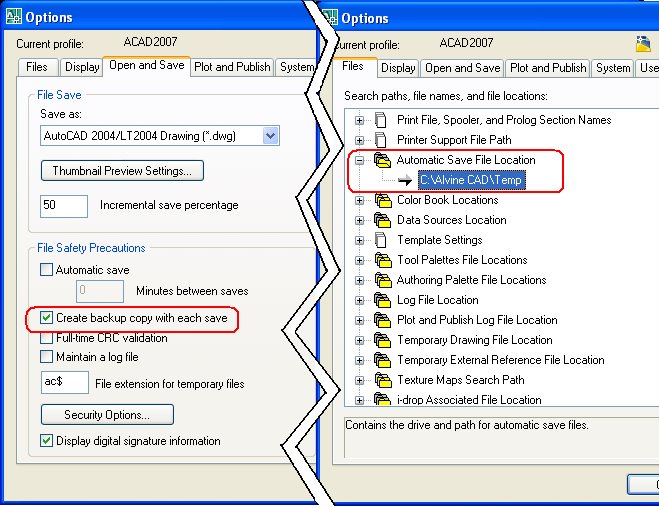
See the image below. In the Open and Save tab of Options check the box to create backup files, then in the Files tab specify where you want them saved to.

In any event, I don't like having to close the Drawing Recovery Manager when I restart AutoCAD. Lucky for me and maybe you, there is a system variable out there to help, RECOVERYMODE.

On the command line, type in RECOVERYMODE and change it to 0, 1, or 2.

Here is a list of what the 3 variables mean:

0 Recovery information is not recorded, the Drawing Recovery window does not display automatically after a system failure, and any recovery information in the system registry is removed.

1 Recovery information is recorded, but the Drawing Recovery window does not display automatically after a system failure.

2 Recovery information is recorded, and the Drawing Recovery window displays automatically in the next session after a system failure.

One of them is right for you, and maybe you recovered a few second of your day for reading Blogs instead of closing a palette you don't use.

Thanks to Joe Konen of Alvine Engineering for the idea for this article.