If you have ever wondered why all the architects think Sketch Up is so great, find out for your self. Google is now allowing downloads of a personal version at...
http://sketchup.google.com/thankyou_win.html
To add to your excitement, 2007 Revit products now import/link Sketch Up (skp) files.
Happy Sketching

Thursday, April 27, 2006

An Essay on Change
Mullet. – Haircut, business in the front, party in back.
I invented this hair cut in 1981, I also invented the bald look in 2002. When I see a mullet today, I know I’m looking at someone that has trouble with change. I ran into a CAD mullet today.
CAD Mullet. – Person who has found what they believe is the perfect process and is now frozen in CAD history letting every new technology past them by.
This gentleman is one of the sharpest AutoCAD people I have ever met. This guy can quote the Help file from 2002. But somewhere in 2002 he hit CAD nirvana. He had found his comfort zone and will not leave it.
Now when I see a mullet on some one or somebody wearing spandex running shorts I first stare, then smile and I am able to say to my self that they are happy. They are not hurting anyone. Maybe they are making a statement on individualism? Maybe they think “if I looked good in 1981, I look good now… don’t I?”
Well, I can enjoy this behavior in fashion; I am truly concerned when it shows up in business. I believe that if you think you have hit the perfect place and business and intend to just continue to do what you have always done, you should retire. Thinking that the world is not changing around you is crazy. Thinking the Pony Express can compete with FedEx is even crazier. If it could, we would still have the Pony Express. If you think you have learned all you can about AutoCAD and you can ride your job out indefinitely on your current knowledge, prepare for some snot nosed punk to knock you off the wall and soon. You don’t have to be psychic to see the future, it’s already here. Does Revit or BIM mean anything to you yet?
I say this, because there was a time when I was the biggest fish in my pond. I got so big and confident in my skills, I grew feet and walked over to the lake across the street where I immediately got ate alive by some considerably bigger fish. What did I learn? Even though I am now about 10 times the fish I was in my pond days and I can hold my own in the lake, there is an ocean right next door and I’m not spit over there.
Here are a couple of hints on growth and change for you.
-If you are great at AutoCAD, learn ADT or Revit just as well.
-If you are the smartest CAD guy in your office, Get the Hell out of your office. Go to or start a User Group, take a class or get close to your local reseller’s AE. Playing Jr. High kids will not help a college team improve, playing against the professionals, you are bound to learn something to improve your game.
-AUGI.com is a huge resource. May I recommend their training program? AUGI Training Program
I used to tell my drafters “If you don’t like change, I suggest you get another job.” I will always believe that is true. I can’t think of a business that has survived any length of time sitting still and you are no different. The last thing I want for any of you is to have you suddenly realize that times have changed and you were left behind wearing spandex and sporting a mullet.
Lead or be left behind, it’s your call.
I invented this hair cut in 1981, I also invented the bald look in 2002. When I see a mullet today, I know I’m looking at someone that has trouble with change. I ran into a CAD mullet today.
CAD Mullet. – Person who has found what they believe is the perfect process and is now frozen in CAD history letting every new technology past them by.
This gentleman is one of the sharpest AutoCAD people I have ever met. This guy can quote the Help file from 2002. But somewhere in 2002 he hit CAD nirvana. He had found his comfort zone and will not leave it.
Now when I see a mullet on some one or somebody wearing spandex running shorts I first stare, then smile and I am able to say to my self that they are happy. They are not hurting anyone. Maybe they are making a statement on individualism? Maybe they think “if I looked good in 1981, I look good now… don’t I?”
Well, I can enjoy this behavior in fashion; I am truly concerned when it shows up in business. I believe that if you think you have hit the perfect place and business and intend to just continue to do what you have always done, you should retire. Thinking that the world is not changing around you is crazy. Thinking the Pony Express can compete with FedEx is even crazier. If it could, we would still have the Pony Express. If you think you have learned all you can about AutoCAD and you can ride your job out indefinitely on your current knowledge, prepare for some snot nosed punk to knock you off the wall and soon. You don’t have to be psychic to see the future, it’s already here. Does Revit or BIM mean anything to you yet?
I say this, because there was a time when I was the biggest fish in my pond. I got so big and confident in my skills, I grew feet and walked over to the lake across the street where I immediately got ate alive by some considerably bigger fish. What did I learn? Even though I am now about 10 times the fish I was in my pond days and I can hold my own in the lake, there is an ocean right next door and I’m not spit over there.
Here are a couple of hints on growth and change for you.
-If you are great at AutoCAD, learn ADT or Revit just as well.
-If you are the smartest CAD guy in your office, Get the Hell out of your office. Go to or start a User Group, take a class or get close to your local reseller’s AE. Playing Jr. High kids will not help a college team improve, playing against the professionals, you are bound to learn something to improve your game.
-AUGI.com is a huge resource. May I recommend their training program? AUGI Training Program
I used to tell my drafters “If you don’t like change, I suggest you get another job.” I will always believe that is true. I can’t think of a business that has survived any length of time sitting still and you are no different. The last thing I want for any of you is to have you suddenly realize that times have changed and you were left behind wearing spandex and sporting a mullet.
Lead or be left behind, it’s your call.
Wednesday, April 12, 2006
Plot Layout Tool Lisp
I recently helped a client that had users that needed to plot, but were intimidated by AutoCAD. We had no time to train them properly and chances were they were going to forget what they leaned due to infrequent plotting.
So here was my solution.
1. I created a DWT file that contained layout tabs that were pre-configured to their printers and plotters with title blocks and viewports included. I placed it on the server (read only).
2. I created lisps to load those layouts into anybody’s current drawing. Here is an example of one.
(defun c:24x36 ()
(setvar "cmdecho" 0)
(command "-layout" "template" "z:/AcmeCAD/Template/ACME.dwt" "Arch D (24 x 36)")
(setvar "cmdecho" 1)
(princ)
)
Then I added a pull down menu to run the lisps.
I will write a future article for adding partial menus to your CUI.
This enabled any user to select the needed layout from a pulldown menu. Once inserted, they only need to switch to that layout tab, set the appropriate view port scale, center as necessary and plot.
This process really helps with consistency. I can just say insert a new tab when there is a plotting problem and It also helps my users be a bit lazier too.
So here was my solution.
1. I created a DWT file that contained layout tabs that were pre-configured to their printers and plotters with title blocks and viewports included. I placed it on the server (read only).
2. I created lisps to load those layouts into anybody’s current drawing. Here is an example of one.
(defun c:24x36 ()
(setvar "cmdecho" 0)
(command "-layout" "template" "z:/AcmeCAD/Template/ACME.dwt" "Arch D (24 x 36)")
(setvar "cmdecho" 1)
(princ)
)
Then I added a pull down menu to run the lisps.
I will write a future article for adding partial menus to your CUI.
This enabled any user to select the needed layout from a pulldown menu. Once inserted, they only need to switch to that layout tab, set the appropriate view port scale, center as necessary and plot.
This process really helps with consistency. I can just say insert a new tab when there is a plotting problem and It also helps my users be a bit lazier too.
Monday, April 03, 2006
Configuring for speed
Is your AutoCAD is too slow? Are you reading this because you are waiting for a file to open and you want to look busy? Is it pretty clear that you are not getting a new PC anytime soon? Well if you answer yes to any of these questions, here are some last ditch efforts you can make to speed things up a tad while you are waiting for that drawing to open.
Disclaimer: Because every system is different, you may notice no change at all, but hey, you got to fill the time you are waiting on that hatch with something.
In no particular order here is my top ten.
1. Clean up your drawings
Purge the crap out of them. Purge them till there is nothing left to purge. Type in –purge. It gives you the option to purge registration applications. You don’t get that in the dialog box. If purging is hard for you because you like to keep thing just in case, try eating a donut while you do it. That always makes me feel better.
Audit them, and yes fix errors.
Wblock them. Nothing cleans up a drawings data base better.
Load express tools and run “overkill” check every box you can. This deletes the most possible duplicates. Set Numeric Fuzz to something just smaller than your current precision setting. May I suggest 1/16”?
2. Max out your Virtual Memory
The virtual Memory setting is in different places depending on what version of Windows you are running, but generally go to Control Panel\System and select the Advanced tab. Select the “Settings” button in the Performance box. A new dialog opens. Select the Advanced tab. If you see Virtual Memory there, select the change button and set it as high as you can. This frees up your (probably bigger than you need) hard drive for use as memory when AutoCAD is performing the big calculations out to 32 decimal places.
3. Look at your Support File Search Paths
It’s the first thing in the Files tab of Options.
Reorder for speed. Every time AutoCAD has to find something, this is the list it goes to and it searches this list in the order shown top to bottom. Think this through, which paths get called the most? Put those high and infrequently used paths at the bottom. Typically, put Fonts, support, and custom content or lisp paths up high and color and Help are last.
Delete unused paths. If you are not going there, don’t ask for directions.
4. Clean up your PC
Uninstall every program you don’t use with extreme prejudice.
Delete every file you don’t use with extreme prejudice.
Run Disk clean up. Start\Programs\Accessories\System Tools. You are now licensed to delete and compress at will.
Defragment your hard drive. Same place as Disk Clean up. Clean first, defrag last. This makes searching your hard drives faster by compressing the search area to the smallest space possible.
Look in every temp folder you can find and delete away. You wouldn’t believe the garbage you will find. If you are scared to delete a file, you probably shouldn’t do it, because I am currently unavailable to help fix any thing that this might break.
Cut the Extras. Do you really need the fancy curser that looks like a hot pepper or the stock ticker, weather bug, internet radio or other resource sucker that is running in the background? Okay, maybe you do, but get rid of the ones that you don’t.
5. Change your monitors Color Settings
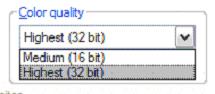
Change the color setting of your monitor to something less than a billion colors. It’s not as pretty, but you are pretty enough without the monitor. Generally just right click on your desktop and select “Properties”. Go to the “Settings” tab and try out some different choices for Color Quality.
6. Don’t let layout tabs cache
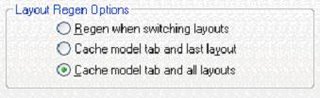
Go to the System tab in Options, then select “Regen when switching layouts”. If there is a lot going on in your multiple layout tabs and you have Cache model and all layouts, AutoCAD will store information about every layout in memory just incase you go back to it. It has to regen the first time any way so if you are not going back and forth all the time, wait for the regen and save your memory for more important things. As you can see from this image, my machine must be plenty fast, because I cache like I own the bank.
7. Add this switch
/C “C:\Program Files\Common Files\Autodesk Shared” to your start up icon to specify the location of your hardware CFG file so AutoCAD doesn’t has to search it out.
8. Then add this switch
/nologo it surpresses the Autodesk splash screen when AutoCAD starts. You know what it looks like, no need to see it every morning.
9. Change your indexctl to zero in your template drawing
This system variable controls whether layer and spatial indexes are created and saved in drawing files. Here’s what the setting 0-3 do.
0 No indexes created
1 makes a layer index
2 makes a spatial index
3 makes a layer and a spatial index
10. Compile your lisps
If you load a lot of lisp routines, compile your lisp files in a VLX. The VLX file loads lisp faster and only when you call it. Look for a future article if this is over your head.
11. Turn off transparency
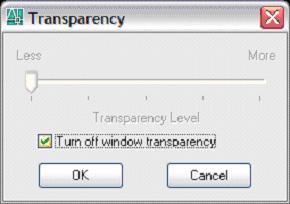
Transparency on your palettes takes a lot of video ram to run and none not to. Right click on any palette and select “Transparency…”. Check the “Turn off window transparency” to turn off all transparencies.
12. Don’t plot or publish in the background
I don’t care what anyone says, its way faster to plot when you have time than let this thing bog your computer down for hours. Un-check the boxes in the Plot and Publish tab of Options.

13. Give AutoCAD a lunch break
AutoCAD is constantly storing things in memory for all kinds of things. Most of this is not cleared from memory until AutoCAD is shut down. So, much like me AutoCAD only wants to work about 4 hours at a shot. Exit out of AutoCAD at lunch time even if you just start it right back up and draft for lunch.
Authors note: Lunch is the second most important meal of the day, try and play video games if you must stay at your desk for lunch.
14.Disable Visual Transitions
Type in “VToptions” and shut 'er down. Hey, we’re disparate here. Sacrifices have to be made.
Dang, I put down 4 extra. Well, if you have one, send it to me and I will publish them next time. Don’t draft too fast now that you configured for speed, it will make everybody else look slow.
Disclaimer: Because every system is different, you may notice no change at all, but hey, you got to fill the time you are waiting on that hatch with something.
In no particular order here is my top ten.
1. Clean up your drawings
Purge the crap out of them. Purge them till there is nothing left to purge. Type in –purge. It gives you the option to purge registration applications. You don’t get that in the dialog box. If purging is hard for you because you like to keep thing just in case, try eating a donut while you do it. That always makes me feel better.
Audit them, and yes fix errors.
Wblock them. Nothing cleans up a drawings data base better.
Load express tools and run “overkill” check every box you can. This deletes the most possible duplicates. Set Numeric Fuzz to something just smaller than your current precision setting. May I suggest 1/16”?
2. Max out your Virtual Memory
The virtual Memory setting is in different places depending on what version of Windows you are running, but generally go to Control Panel\System and select the Advanced tab. Select the “Settings” button in the Performance box. A new dialog opens. Select the Advanced tab. If you see Virtual Memory there, select the change button and set it as high as you can. This frees up your (probably bigger than you need) hard drive for use as memory when AutoCAD is performing the big calculations out to 32 decimal places.
3. Look at your Support File Search Paths
It’s the first thing in the Files tab of Options.
Reorder for speed. Every time AutoCAD has to find something, this is the list it goes to and it searches this list in the order shown top to bottom. Think this through, which paths get called the most? Put those high and infrequently used paths at the bottom. Typically, put Fonts, support, and custom content or lisp paths up high and color and Help are last.
Delete unused paths. If you are not going there, don’t ask for directions.
4. Clean up your PC
Uninstall every program you don’t use with extreme prejudice.
Delete every file you don’t use with extreme prejudice.
Run Disk clean up. Start\Programs\Accessories\System Tools. You are now licensed to delete and compress at will.
Defragment your hard drive. Same place as Disk Clean up. Clean first, defrag last. This makes searching your hard drives faster by compressing the search area to the smallest space possible.
Look in every temp folder you can find and delete away. You wouldn’t believe the garbage you will find. If you are scared to delete a file, you probably shouldn’t do it, because I am currently unavailable to help fix any thing that this might break.
Cut the Extras. Do you really need the fancy curser that looks like a hot pepper or the stock ticker, weather bug, internet radio or other resource sucker that is running in the background? Okay, maybe you do, but get rid of the ones that you don’t.
5. Change your monitors Color Settings
Change the color setting of your monitor to something less than a billion colors. It’s not as pretty, but you are pretty enough without the monitor. Generally just right click on your desktop and select “Properties”. Go to the “Settings” tab and try out some different choices for Color Quality.

6. Don’t let layout tabs cache
Go to the System tab in Options, then select “Regen when switching layouts”. If there is a lot going on in your multiple layout tabs and you have Cache model and all layouts, AutoCAD will store information about every layout in memory just incase you go back to it. It has to regen the first time any way so if you are not going back and forth all the time, wait for the regen and save your memory for more important things. As you can see from this image, my machine must be plenty fast, because I cache like I own the bank.

7. Add this switch
/C “C:\Program Files\Common Files\Autodesk Shared” to your start up icon to specify the location of your hardware CFG file so AutoCAD doesn’t has to search it out.
8. Then add this switch
/nologo it surpresses the Autodesk splash screen when AutoCAD starts. You know what it looks like, no need to see it every morning.
9. Change your indexctl to zero in your template drawing
This system variable controls whether layer and spatial indexes are created and saved in drawing files. Here’s what the setting 0-3 do.
0 No indexes created
1 makes a layer index
2 makes a spatial index
3 makes a layer and a spatial index
10. Compile your lisps
If you load a lot of lisp routines, compile your lisp files in a VLX. The VLX file loads lisp faster and only when you call it. Look for a future article if this is over your head.
11. Turn off transparency
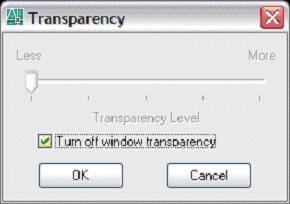
Transparency on your palettes takes a lot of video ram to run and none not to. Right click on any palette and select “Transparency…”. Check the “Turn off window transparency” to turn off all transparencies.
12. Don’t plot or publish in the background
I don’t care what anyone says, its way faster to plot when you have time than let this thing bog your computer down for hours. Un-check the boxes in the Plot and Publish tab of Options.

13. Give AutoCAD a lunch break
AutoCAD is constantly storing things in memory for all kinds of things. Most of this is not cleared from memory until AutoCAD is shut down. So, much like me AutoCAD only wants to work about 4 hours at a shot. Exit out of AutoCAD at lunch time even if you just start it right back up and draft for lunch.
Authors note: Lunch is the second most important meal of the day, try and play video games if you must stay at your desk for lunch.
14.Disable Visual Transitions
Type in “VToptions” and shut 'er down. Hey, we’re disparate here. Sacrifices have to be made.
Dang, I put down 4 extra. Well, if you have one, send it to me and I will publish them next time. Don’t draft too fast now that you configured for speed, it will make everybody else look slow.
Subscribe to:
Posts (Atom)