Go and get it.

Tuesday, March 31, 2009

Monday, March 30, 2009
AutoCAD Exchange
I am getting slow in my old age. I should have posted sooner about AutoCAD Exchange, but my dog ate my Blackberry. I have added a widget to my side bar showing some mighty cool links to Autodesk's AutoCAD Exchange site. I'm liking the site for everything AutoCAD. If you are geeky enough to be reading my ramblings, then leaping out to AutoCAD Exchange is definitely worth your time.
If you are really over the top about this site and wanted to know what I look like, there is an actual picture of me on AutoCAD Exchange right now, and they put me next to Lynn Allen. It's almost like being in a picture together with her, except for not really. Sign up to today, maybe you can get your picture wedged in between us.

Thursday, March 26, 2009
Instant Override
When using publish in AutoCAD based products any page setup can be used as an override from the default page setup in the layout tab. This is great because these page setups can be stored in a template file and used as needed.
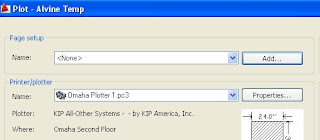

Every once in a while you may find you need an override that has not been defined. To make one on the spot open the first drawing in your set and make the appropriate changes to the plot dialog and save the setup.
Save the drawing and invoke Publish. Make sure the drawing you changed is at the top of your list of drawings to publish. Select all the drawing layouts and use the down arrow by the what to publish to select the override you just made. Publish will apply it to all of the drawing in the queue.
Monday, March 16, 2009
Hatch Pattern Too Dense
When opening a clients drawing I kept getting this error "Hatch Pattern Too Dense". After doing a little research I came across MaxHatch. This controls the number of elements hatch can create. The default value is 10000. To find out where you sit currently type the following on your command line. Be careful this command is case sensitive.
(getenv "MaxHatch")
To increase that number to its maximum copy and paste this on your command line.
(setenv "MaxHatch" "100000000")
Monday, March 09, 2009
Dealing with Different AutoCAD Drawing Versions
Dealing with AutoCAD drawing versions can be a pain when you are sharing drawings. Many times members of the team are at different ends of CAD knowledge and resources. With 2010 getting ready to ship I thought I would share some tools I use to one find out what I'm dealing with and two convert file formats to make sharing a pleasure.
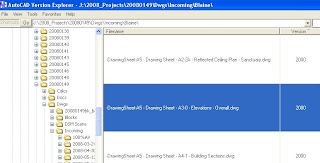
AVE has a nice Explorer that tells you what version drawings are and it's free. Down load it here. This is really helpful to use right before you send drawings out to ensure the drawing version is capable for the partner you are sending them too. I end up using it after the fact when they ask what version I sent.
s number one use is as a DWG viewer. This allows non-technical or technically dangerous people the opportunity to open view and plot DWGs with messing the files up or taking valuable AutoCAD licences from the design team.
Equally cool, is the ability to batch convert from any AutoCAD DWG version to another (within reason).
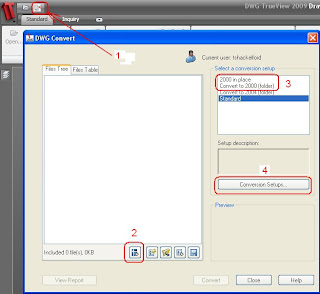
- Click the button indicated with the number 1 in the image below to launch the DWG Convert dialog.
- Click the Icon indicated with a 2 to add drawings to be converted. You can grab a whole group at a time.
- Select a set up. In place replaces files and folder creates a new folder the the new versions.
- Create your own setup. This process is very straight forward, just dig in and you will do fine.
Hopes this helps someone who didn't know about either of these utilities. Good luck.
Subscribe to:
Posts (Atom)